
Git Tip: You Cannot Delete the Branch You Are Currently On
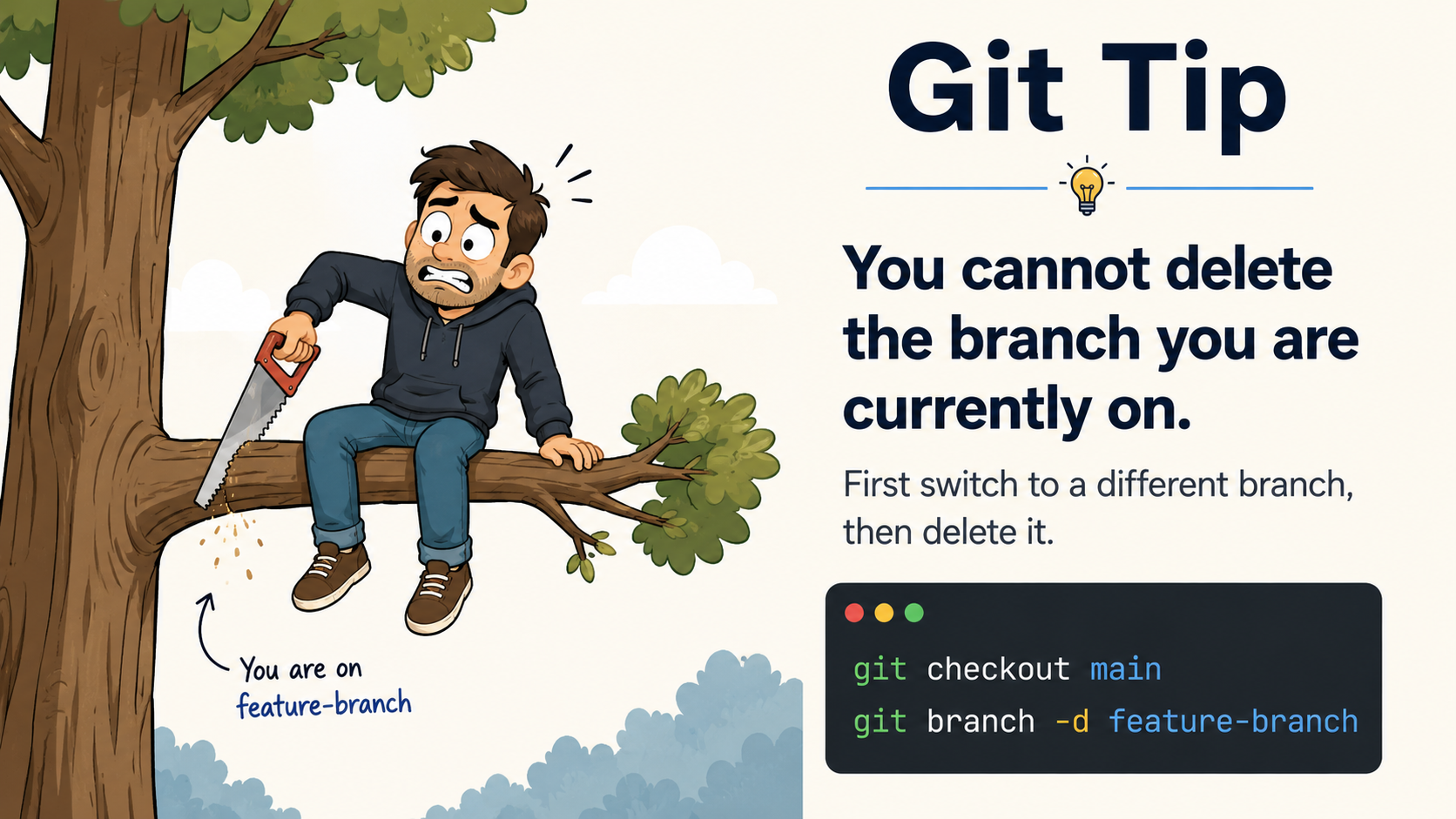
In Git, a branch is like the tree branch you are sitting on. If you try to delete the same branch while you are currently on it, Git will not allow it.
For example, if you are currently on feature-branch, you cannot delete feature-branch directly.
git branch -d feature-branch
Git will throw an error because you are trying to delete the active branch.
The correct way is to first switch to another branch, usually main, master, or any stable branch.
git checkout main
or
git switch main
Then delete the branch:
git branch -d feature-branch
If the branch is not fully merged and you still want to delete it forcefully, use:
git branch -D feature-branch
Deleting Local and Remote Branches
Sometimes branch deletion is needed to clean up old work, remove corrupted branches, or restart a CI/CD flow.
To delete a local branch:
git branch -d branch-name
Force delete local branch:
git branch -D branch-name
To delete a remote branch:
git push origin --delete branch-name
Example:
git push origin --delete stage
Practical Scenario: Stage Branch Got Corrupted
Let’s say you have a stage branch used for deployment or CI/CD. You started a POC using AI development tools, but after many changes, the branch became unstable or corrupted.
Luckily, you had already created a backup branch before starting the POC:
stage-backup-before-ai-poc
Now you want to reset everything and bring stage back to the clean backup state.
There are a few ways to handle this.
Option 1: Delete and Recreate the Stage Branch from Backup
First, switch to a safe branch:
git checkout main
Delete the local stage branch:
git branch -D stage
Delete the remote stage branch:
git push origin --delete stage
Now recreate stage from the backup branch:
git checkout stage-backup-before-ai-poc
git checkout -b stage
git push origin stage
This creates a fresh stage branch from the backup.
Option 2: Reset Stage Branch to Backup Branch
If you do not want to delete the branch, you can reset stage to match the backup branch.
git checkout stage
git reset --hard stage-backup-before-ai-poc
git push origin stage --force
This will make the remote stage branch exactly the same as the backup branch.
Use this carefully because --force rewrites branch history.
Option 3: Create a New Clean Stage Branch
Instead of deleting or force pushing the existing branch, you can create a new clean branch from backup:
git checkout stage-backup-before-ai-poc
git checkout -b stage-clean
git push origin stage-clean
Then update your CI/CD pipeline to use stage-clean instead of stage.
This is safer because the old stage branch is still available for reference.
Option 4: Revert Bad Commits
If only a few commits caused the problem, deleting the branch may not be required. You can revert those commits.
git revert commit-id
This creates a new commit that reverses the bad changes without rewriting history.
This is usually safer when multiple developers are working on the same branch.
Important Note
Before deleting or force resetting any branch, always confirm:
- Whether other developers are using the branch
- Whether the branch is connected to CI/CD
- Whether any important code exists only on that branch
- Whether you have a proper backup branch or tag
A good practice is to create a backup before major cleanup:
git checkout stage
git checkout -b stage-backup-before-reset
git push origin stage-backup-before-reset
Final Thought
Deleting a Git branch while standing on the same branch is like cutting the tree branch while sitting on it. First move to a safe branch, then delete or reset the target branch.
In real projects, branch cleanup is useful, but it should be done carefully, especially when CI/CD, deployment, or team collaboration is involved.